PNG vs. JPG vs. WebP: I Wasted a Month of My Life So You Don’t Have To
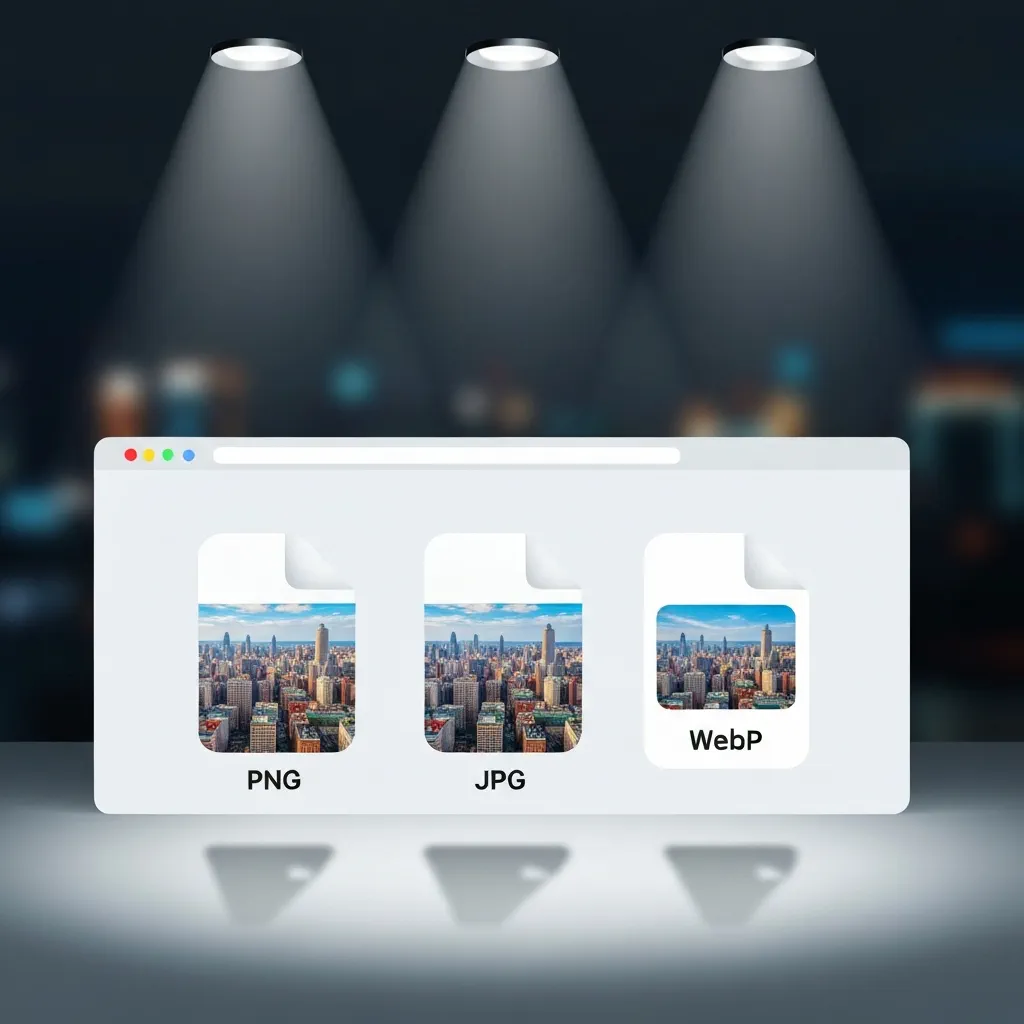
Early in my career, I was tasked with speeding up a client’s e-commerce site. It was beautiful, but it loaded like a slideshow in the dial-up era. The client was convinced their hosting was garbage. They’d spent weeks arguing with support, running server tests, and were ready to migrate their entire infrastructure—a massive, expensive undertaking.
I took one look at their media library and felt a cold dread. The developer, likely in a rush, had uploaded every single product image as a full-resolution PNG-24. We’re talking 3MB hero shots and 800KB thumbnails. The homepage alone was over 15MB. They were using a format designed for sharp-edged logos to display photographic images. It was the digital equivalent of trying to haul lumber in a Ferrari. The problem wasn’t the server; it was a fundamental misunderstanding of file formats. We spent the next month re-exporting and replacing thousands of images. It was a tedious, costly mistake that could have been avoided by asking one simple question.
The Quick Win: Your 10-Second Decision Framework
Let's get straight to the point. Choosing the right image format isn't black magic. It's a quick decision based on what the image *is*.
- Use JPG for photos: Anything with lots of colors and gradients, like product shots, landscapes, or portraits.
- Use PNG for graphics: Anything that needs a transparent background or has sharp lines and solid colors, like logos, icons, or interface screenshots.
- Use WebP for everything (almost): This modern format can replace both JPG and PNG with smaller file sizes, but you need a workflow to convert your files.
The friction isn't in knowing *what* to use, but in the *doing*. This is where a good workflow tool comes in. The ability to seamlessly convert a PNG to an optimized JPG or WebP is what separates the pros from the people who waste a month fixing a slow website.
Deep Dive: From File Extensions to Faster Websites
The Workhorse: JPG Is Still King of Photos
JPEG (or .jpg) has been the internet's go-to for photos since the beginning, and for good reason. Its superpower is "lossy" compression. This sounds bad, but it’s actually genius. It intelligently throws away tiny bits of color information that the human eye can't easily perceive. In exchange, you get a massive reduction in file size.
Think of a photo of a blue sky. It’s not one shade of blue; it's millions of them. A JPG looks at them and says, "Hey, these 500 shades of blue are basically identical. Let's just make them all one shade." You don't notice the difference, but the file size plummets.
A few years ago, I helped a travel blogger whose site was struggling. Her photos were stunning, but her page load times were a disaster. Her Core Web Vitals score was deep in the red. We audited her images and found she was saving her JPGs at 100% quality. By re-exporting them at 75-85% quality, we achieved the following:
- Average image file size dropped from 1.2MB to 250KB (a 79% reduction).
- Homepage load time went from 7.2 seconds to 2.1 seconds.
- Bounce rate decreased by 25% within a month.
The visual difference was imperceptible, but the performance impact was enormous.
Pro Tip: Never use a JPG for an image that requires a transparent background. It doesn't support it. If you try, you'll get an ugly, solid-colored box behind your subject. That’s a job for PNG or WebP.
The Specialist: PNG's Superpower is Transparency
If JPG is the workhorse, PNG is the specialist surgeon. It uses "lossless" compression, meaning no data is thrown away. This is perfect for computer-generated graphics where every pixel matters—think logos, charts, or UI elements with crisp text. An over-compressed JPG would create fuzzy artifacts around sharp lines, but a PNG keeps them perfect.
But its real killer feature is the "alpha channel"—the ability to have parts of the image be fully transparent. This is non-negotiable for web design. You need it to place your logo on a colored navigation bar or to use icons that don't have a clunky white box around them.
I once worked on a brand refresh where the logo needed to appear on over a dozen different background textures across the website. By providing it as a single PNG with a transparent background, the developers could place it anywhere without us having to create 12 different versions. It’s flexible and efficient.
The trade-off? File size. Saving a photograph as a PNG will result in a file that is 5 to 10 times larger than an equivalent-quality JPG, with zero benefit. This was the exact mistake my e-commerce client made. They chose the format with the highest quality without considering its purpose, and it crippled their site.
The Future is Here: Making the Switch to WebP
For years, we had to choose: the photographic efficiency of JPG or the sharp, transparent graphics of PNG. WebP, a format developed by Google, came along and said, "Why not both, but better?"
WebP can do lossy compression like a JPG, lossless compression like a PNG, and it supports transparency. And in almost every case, it does it with a smaller file size. On average, a WebP image is 25-35% smaller than a comparable JPG and about 26% smaller than a comparable PNG.
For years, the big "but" with WebP was browser support. Nobody wanted to use an image format that wouldn't show up for a chunk of their audience. Well, those days are over. As of now, WebP is supported by every major browser on the market. It's safe to use.
The only remaining friction is the workflow. Your camera doesn't shoot in WebP, and your colleague is still going to email you a PNG. This is where modern tooling is essential. Having to open a separate, clunky converter for every image is a non-starter. But when conversion is built right into your workflow—like when you use a tool like PixnZip to manage your digital assets—it becomes a no-brainer. You can drag in a folder of JPGs and PNGs and batch-convert them all to WebP in seconds. That’s how you make modern formats practical. (👉 https://www.pixnzip.com)
The Counter-Intuitive Section: "Always Use the Smallest File Size" Is Terrible Advice
The internet is full of "performance gurus" who will tell you to compress your images into oblivion. They’ll boast about getting their JPGs down to 30KB. This obsession with the lowest possible number is a dangerous trap. It completely ignores the most important factor: user perception.
Your website is not a spreadsheet. It’s a representation of your brand. If a visitor lands on your page and sees a blurry, artifact-ridden hero image, they aren’t going to think, "Wow, this page loaded 0.2 seconds faster!" They’re going to think, "This looks cheap and unprofessional," and then they'll leave.
The goal isn't the smallest possible file size. It's the smallest file size at an acceptable level of quality.
A better approach is what I call the "Goldilocks Zone." Instead of targeting a specific kilobyte number, use a visual quality slider. Start at a high setting (say, 90%) and slowly lower it while looking at the image preview. The moment you see the quality start to visibly degrade—when it starts to look "off"—stop. Go back up a step. That’s your Goldilocks Zone. You've removed the maximum amount of data without sacrificing the user's perception of quality. A 150KB image that looks crisp is infinitely better for your business than a 50KB image that looks like a mess.
Frequently Asked Questions (From the Trenches)
- Okay, but what about SVG? You didn't mention it.
- Good question. SVG is a totally different beast. It’s a vector format, not a raster (pixel-based) format like JPG, PNG, or WebP. Use SVG for things drawn with points and lines: logos, icons, and simple illustrations. They are infinitely scalable without losing quality and usually have tiny file sizes. Never use it for photos.
- If I convert a blurry JPG to a PNG, will it get sharper?
- No. This is like recording a low-quality MP3 onto a high-quality cassette tape—you can't magically create data that was already thrown away. Converting a lossy JPG to a lossless PNG will only make the file much, much larger without any improvement in quality.
- Do I need to create fallback images for WebP?
- Five years ago, absolutely. Today, it's mostly unnecessary unless you have a legal or business requirement to support very old browsers (like Internet Explorer 11). For over 97% of global web traffic, WebP just works. For a standard business website or blog, you can confidently serve WebP images directly.
- Can I convert animated GIFs to WebP?
- Yes, and you absolutely should! Animated WebP files are significantly smaller than their ancient GIF counterparts and support a much wider range of colors. It's one of the best and easiest performance wins you can get if your site uses animated GIFs.
The "Real Talk" Ending
Stop for a second and think about your current workflow. When someone sends you an image for the website, what do you do? If your answer is "I upload it," you're making the same mistake that cost my client a month of developer time and thousands of dollars.
The format your camera or design app exports is just a starting point. It’s almost never the right format for the web.
Here’s my challenge to you. For one week, don't upload a single image without putting it through this simple process. First, ask "Is it a photo or a graphic?" to choose your format. Second, run it through an optimizer to find that "Goldilocks Zone" of quality and file size.
Experiment with making this part of your natural workflow. Try a tool where you can compress, convert, and resize in one motion, rather than juggling three different apps. See how it feels to make the right choice the easy choice. That habit alone will put you ahead of half the people running websites today.